How to set up Umfeld on desktop
Umfeld is a C++ variant of Processing with a Processing-style API for audio and graphics applications.
Recommended: use the official installer
The installer supports macOS, Linux (including Raspberry Pi OS), and Windows through MSYS2 UCRT64. It installs the required platform packages and downloads Umfeld, its examples, and its optional libraries into the current directory.
1. Prepare your terminal
macOS
No preparation is needed; the installer installs Homebrew if necessary.
Linux
Install curl and git using the command for your distribution.
Debian/Ubuntu:
sudo apt install -y git curl
Arch Linux:
sudo pacman -S --noconfirm --needed curl
Windows
Install MSYS2 and open the MSYS2 UCRT64 terminal. Install
curl from that terminal:
pacman -S --noconfirm --needed ucrt64/mingw-w64-ucrt-x86_64-curl
Run all the commands below in the MSYS2 UCRT64 terminal. Visual Studio Build Tools and other MSYS2 environments such as MINGW64 are not supported.
2. Install the latest stable release
In the directory where you want the three Umfeld repositories to be created, run:
/bin/bash -c "$(curl -fsSL https://codeberg.org/Umfeld/umfeld/raw/branch/main/install.sh)" _ --latest
The installer prompts before changing the system or downloading files. The resulting
folders are umfeld, umfeld-examples, and umfeld-libraries.
3. Build your first example
cd umfeld-examples/Basics/minimal
cmake -B build
cmake --build build
./build/minimal
If a window opens, you are ready. Next, try drawing a cute cat.
Canonical platform instructions
The official documentation is the source of truth for dependencies, manual installation, and platform-specific troubleshooting:
- Installation and complete dependency lists
- macOS setup
- Linux setup
- Windows setup (MSYS2 UCRT64)
- Raspberry Pi setup
- Installer options
Supported alternatives
Processing Mode in the Processing PDE
Umfeld is an official Processing mode and can be installed directly from the Processing PDE’s Contribution Manager. You do not need to download a mode ZIP or copy files manually.
-
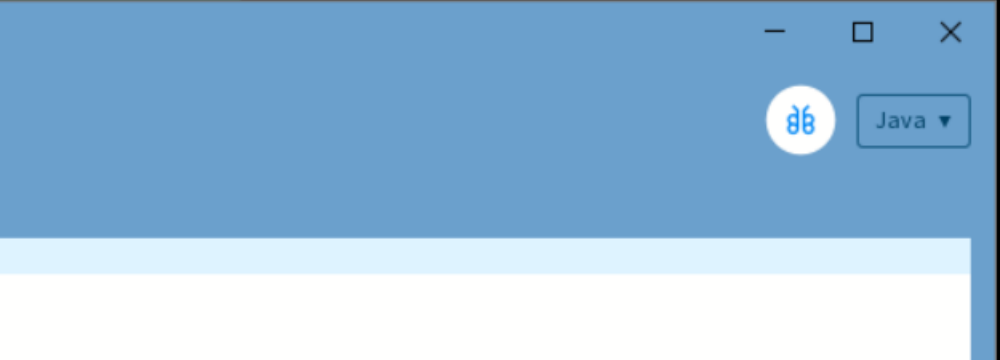
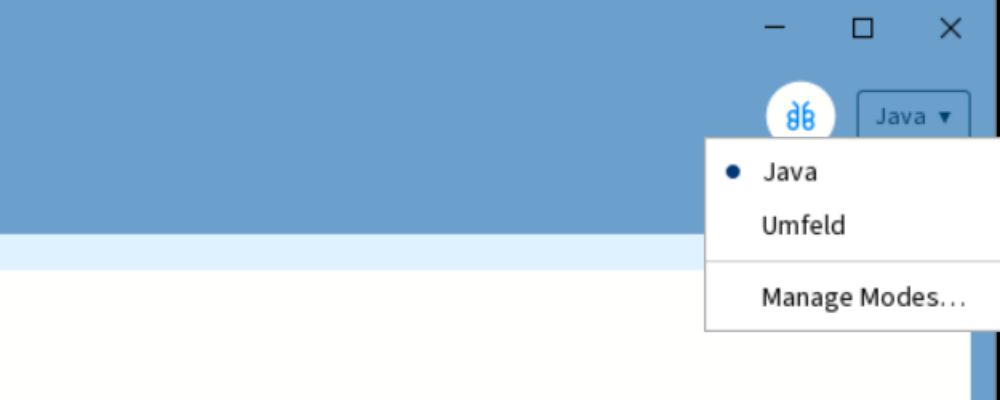
Install and open Processing 4. In the upper-right corner of the editor, click the current mode selector (normally Java).
-
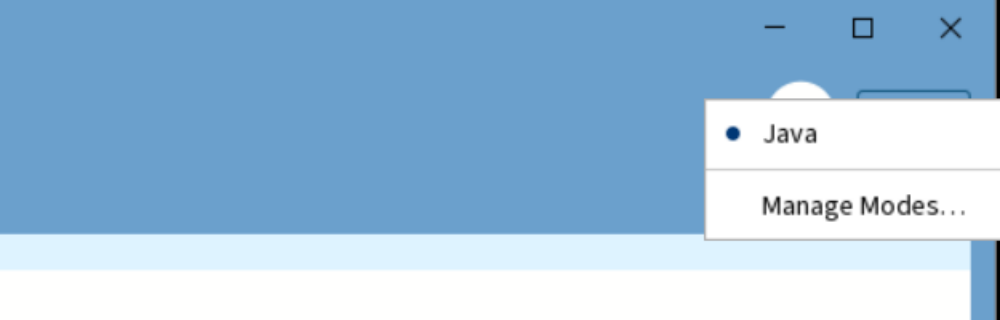
Choose Manage Modes… from the menu.
-
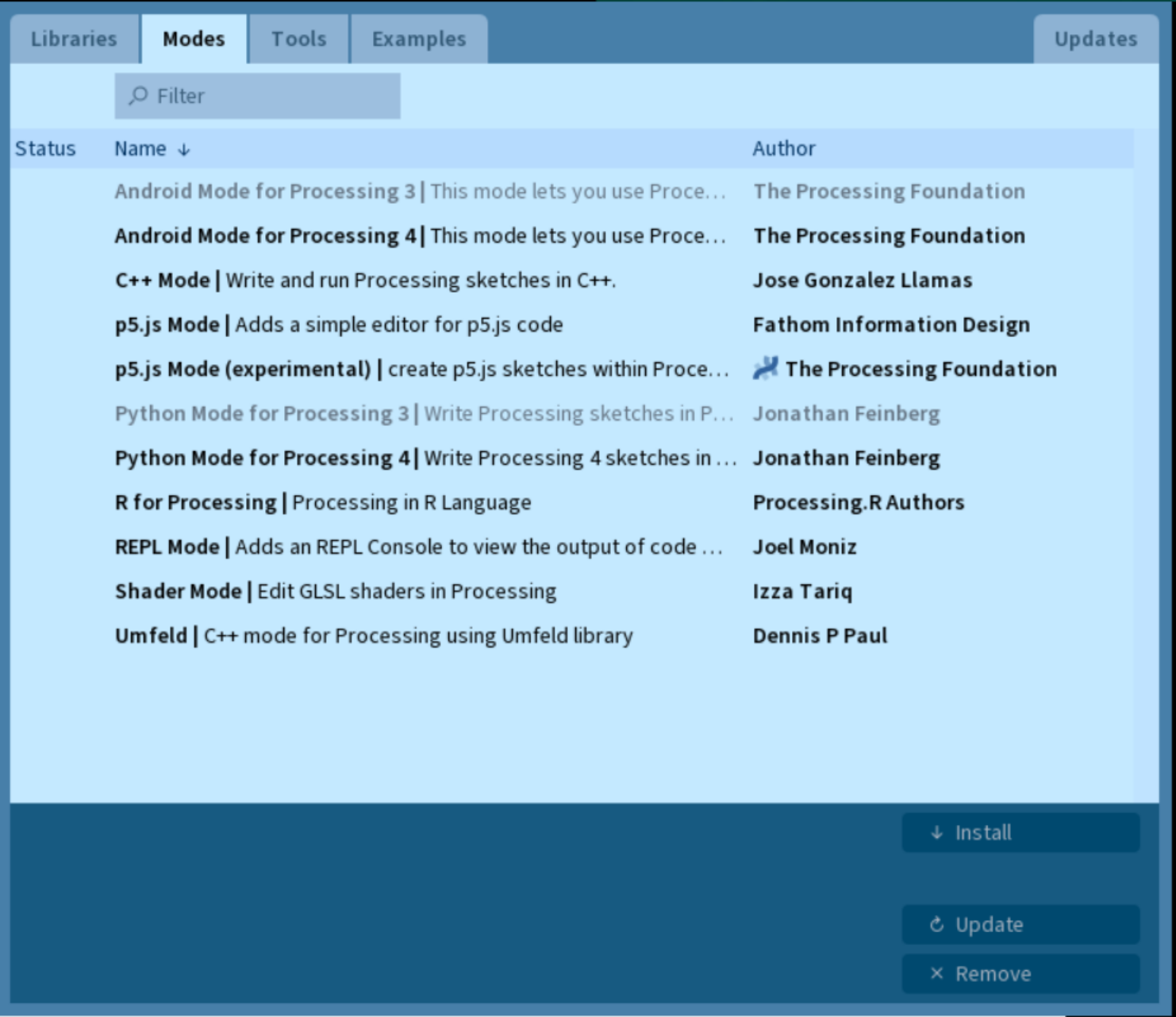
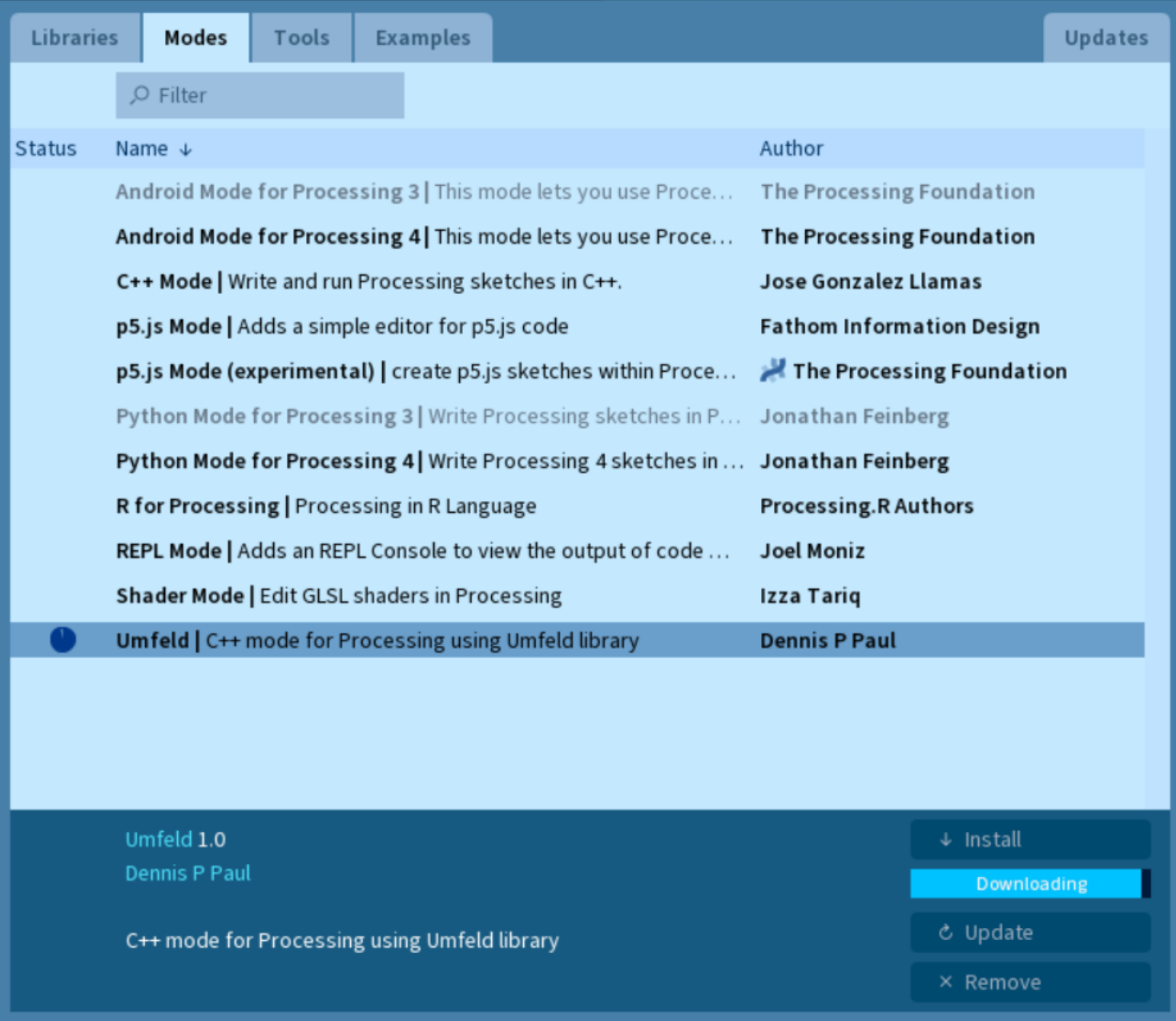
In the Contribution Manager, open the Modes tab and find Umfeld in the list.
-
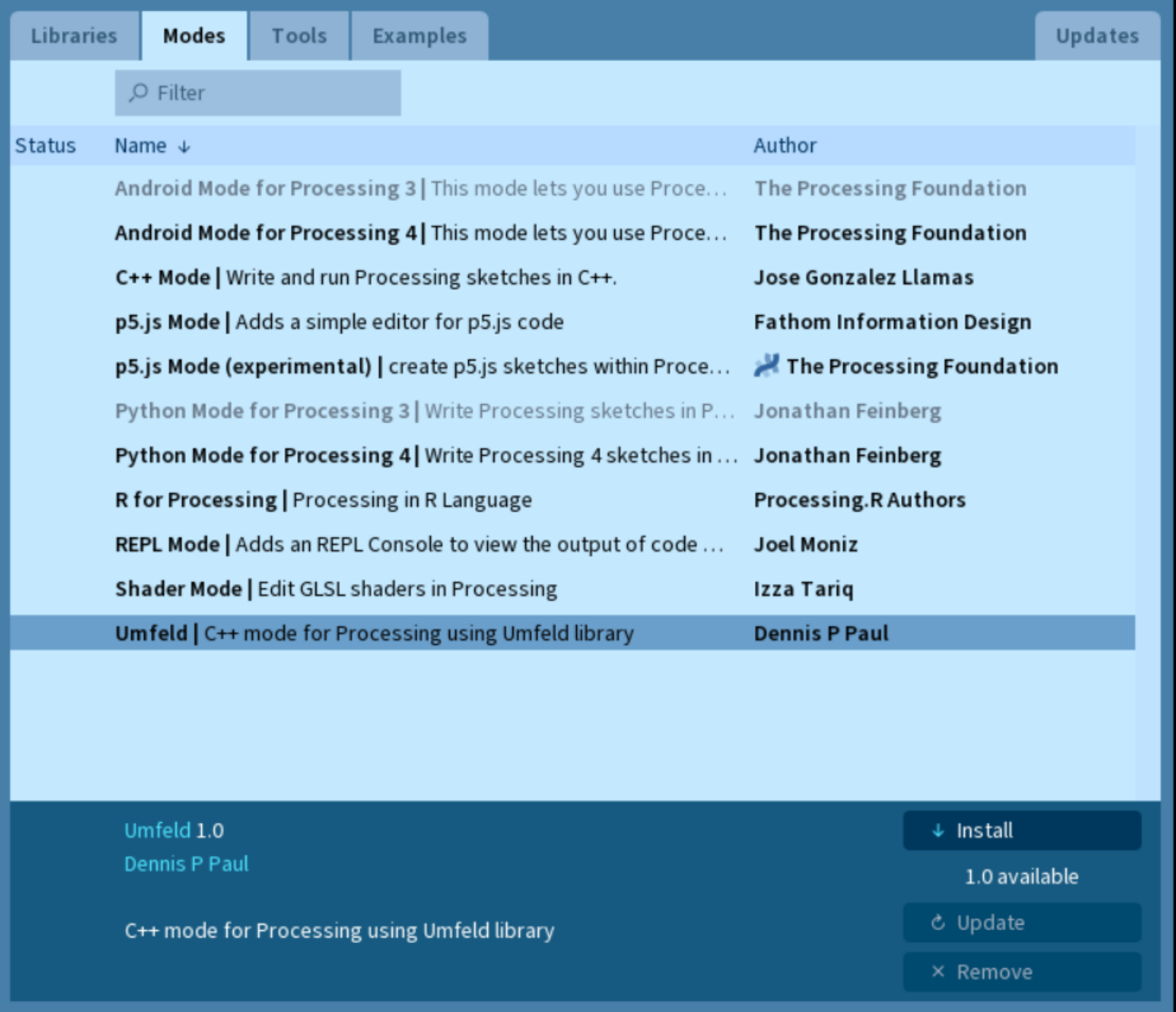
Select Umfeld, then click Install.
-
Wait for the download and installation to finish before closing the Contribution Manager.
-
Open the mode selector again. Umfeld now appears in the menu; choose it. If it does not appear immediately, restart Processing.
-
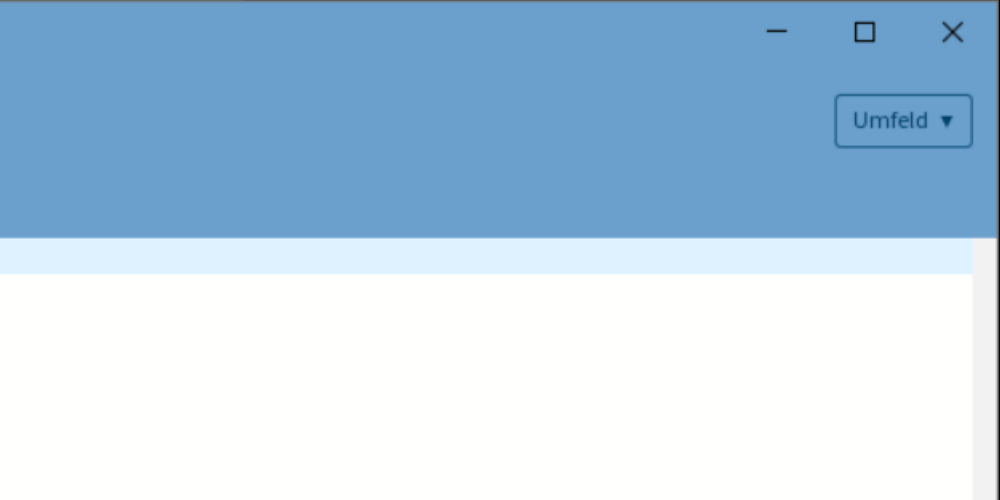
Confirm that the mode selector now reads Umfeld instead of Java.
-
Create a sketch, enter Umfeld C++ code, and click the Run button. For example:
#include "Umfeld.h"

using namespace umfeld;

void settings() {
    size(640, 480);
}

void draw() {
    background(216);
    circle(width / 2, height / 2, 100);
}
The mode includes its own copy of Umfeld, but your computer still needs the native build packages used by Umfeld. Follow the Processing Mode setup guide for platform prerequisites and current limitations.
Homebrew
On Apple Silicon macOS, Umfeld can instead be installed as a lean system-wide library:
brew tap Umfeld/umfeld https://codeberg.org/Umfeld/homebrew-umfeld
brew trust Umfeld/umfeld
brew install Umfeld/umfeld/umfeld
This does not create the examples-and-libraries repository layout used above. See the official Homebrew tap for package usage and uninstallation instructions.
Android and iOS (experimental)
The desktop installer does not create mobile projects. Follow the Android and iOS application guide to build a sketch with the official mobile templates, run it in an emulator or simulator, and deploy it to a physical device.